The UsersWP Dashboard Addon allows users to manage everything from one simple, easy-to-use dashboard.
The Dashboard addon transforms your site into a fully-featured control center where every user – from administrators to listing owners to regular members – can easily manage their account, content, and payments. Fully integrated with UsersWP, GeoDirectory , WP GetPaid, and other supported plugins, this addon creates a seamless experience your users will love.
Unlike a one-size-fits-all solution, the Dashboard addon automatically adapts the dashboard experience based on the user’s role on your site.
Admin Dashboard – Complete Site Management
Site administrators gain full visibility and control over site activity, user registrations, listings, and revenue. Admins can quickly access site-wide statistics, manage users, moderate listings, review payments, and handle support requests from one centralized interface.
Configuring the Dashboard
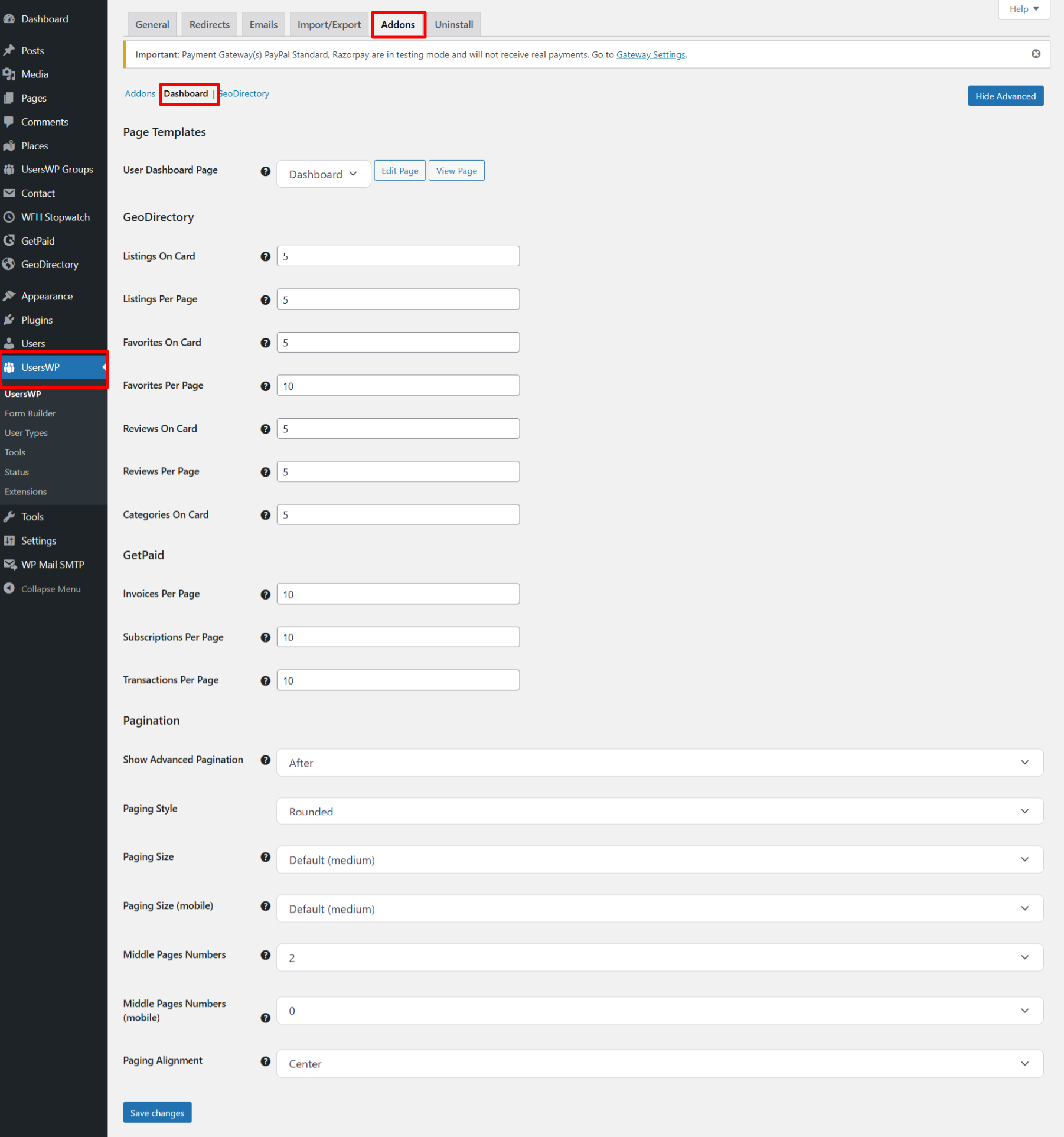
Configure the dashboard settings from: UsersWP → Settings → Addons → Dashboard
Page Templates
- User Dashboard Page – Select the page that will be used as the main user dashboard. Make sure this page contains the required UsersWP dashboard blocks.
GeoDirectory Settings
These options control how GeoDirectory content appears in the user dashboard.
- Listings On Card – Display number of items on popular listings card.
- Listings Per Page – Display number of items per page on dashboard listings page.
- Favorites On Card – Display number of items on favorites card.
- Favorites Per Page – Display number of items per page on favorites page.
- Reviews On Card – Display number of items on reviews card.
- Reviews Per Page – Display number of items per page on reviews page.
- Categories On Card – Display number of items on popular categories card.
GetPaid Settings
These options manage payment-related records when WP GetPaid is installed.
- Invoices Per Page – Display number of items per page on dashboard invoices page.
- Subscriptions Per Page – Display number of items per page on dashboard subscriptions page.
- Transactions Per Page – Display number of items per page on dashboard transactions page.
Pagination Settings
Pagination settings control how lists and records are displayed in the dashboard.
- Show Advanced Pagination – Displays extra pagination info like `Showing items x-y of z` before/after pagination.
- Paging Style – Select the visual style of pagination (e.g., Auto, Rounded).
- Paging Size – Set the pagination size for normal screen.
- Paging Size (Mobile) – Set the pagination size for mobile devices.
- Middle Pages Numbers – How many numbers to either side of the current pages. Default 2.
- Middle Pages Numbers (Mobile) – How many numbers to either side of the current pages on small screen. Default 0.
- Paging Alignment – Pagination alignment within the element. (eg: left, center, right)
Saving Your Settings
After configuring all dashboard options:
- Review all values carefully.
- Click the Save Changes button.
- Clear cache if you are using any caching plugin.
- Test the dashboard on the frontend.
Best Practice Recommendations
- Keep per-page values between 5 and 10 for optimal performance.
- Use advanced pagination for large websites.
- Optimize database regularly for faster loading.
- Test dashboard on mobile devices.
Dashboard settings screenshot
Example Output
Below is an example of how the user dashboard appears on the frontend after configuration:
Default Output:
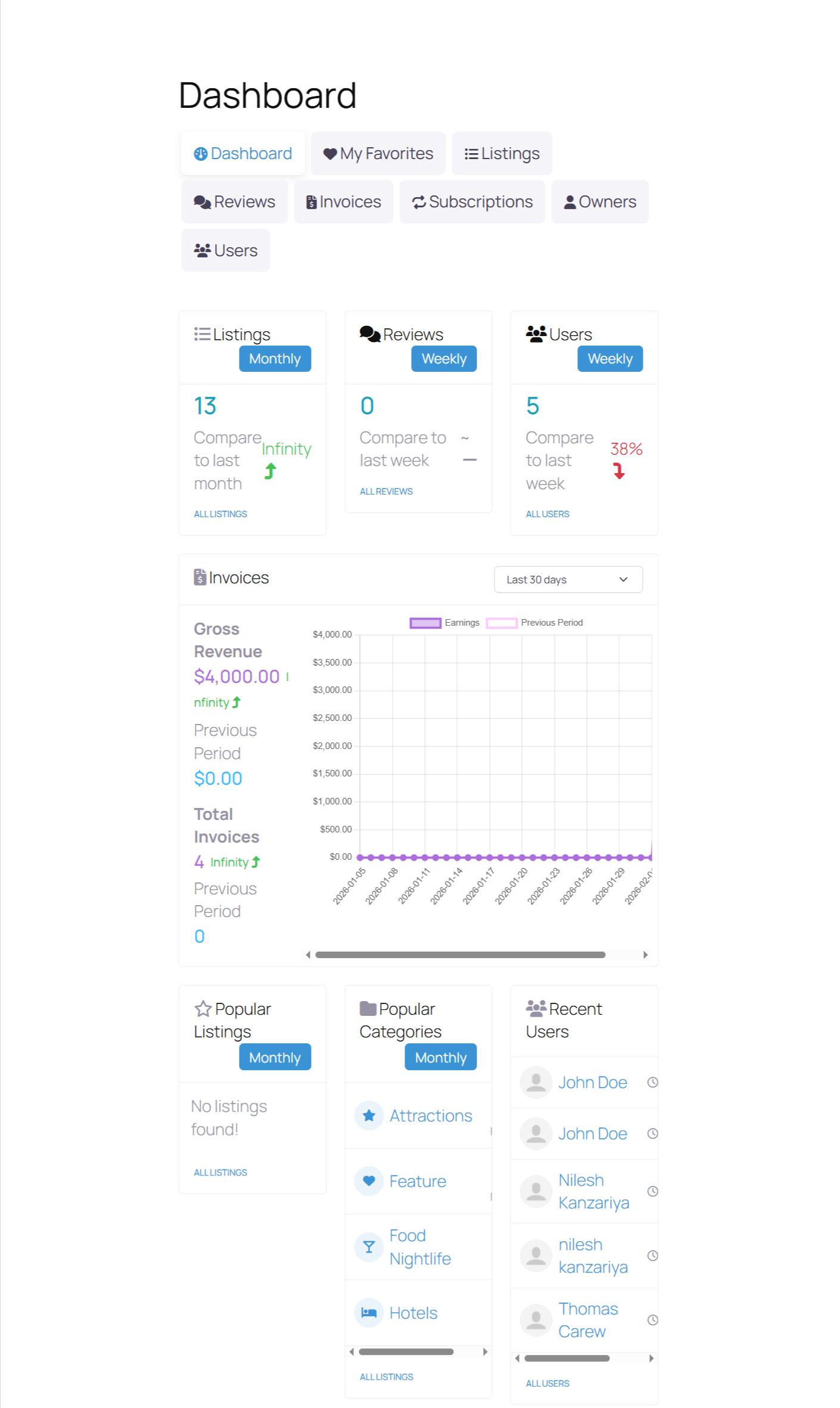
The appearance and layout may vary depending on your theme and customization settings.