The UWP > Newsletter Subscribe Form widget is used to display a subscription form for your mailing lists. In addition to the widget, you can use the [uwp_newsletter_subscribe] shortcode to display the form anywhere on your site.
Settings Overview
- Widget Title – Enter a custom title for the newsletter subscribe widget.
- Subscribe List – Select the mailing list where subscribers will be added.
- Display Labels – Show or hide field labels in the form.
- Show Subscribe Button – Enable or disable the subscribe button.
- First Name Label – Set the label text for the first name input field.
- First Name Placeholder – Set the placeholder text inside the first name field.
- Last Name Label – Set the label text for the last name input field.
- Last Name Placeholder – Set the placeholder text inside the last name field.
- Email Label – Set the label text for the email input field.
- Email Placeholder – Set the placeholder text inside the email field.
- Subscribe Button Text – Customize the subscribe button text.
- Success Message – Enter the message shown after successful subscription.
Example Output
Default Output:
Below is the default subscription form with an email input field:
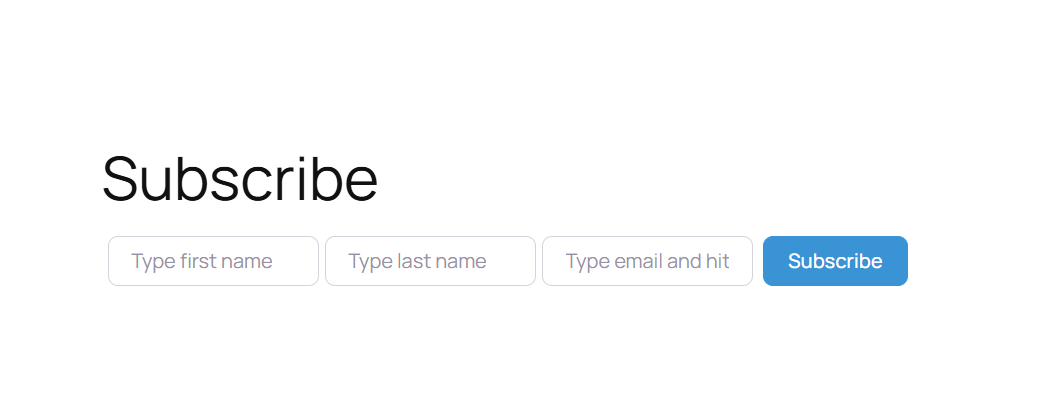
The appearance and layout may vary depending on your active theme and customization settings.