This article will guide you through the process of setting up the Aweber extension for UsersWP.
Getting Started
The Aweber extension for UsersWP lets users subscribe to your Aweber newsletter.
- 1
- First, make sure you have created a Aweber account. Furthermore, you will need a Aweber Client ID from here.
- 2
- Upon successful activation of the extension, go to UsersWP > Addons > Aweber and input your Client ID and generated Authorization Token. For details, read our Settings Overview.
You have now integrated the extension with your Aweber account.
Adding Subscription Forms
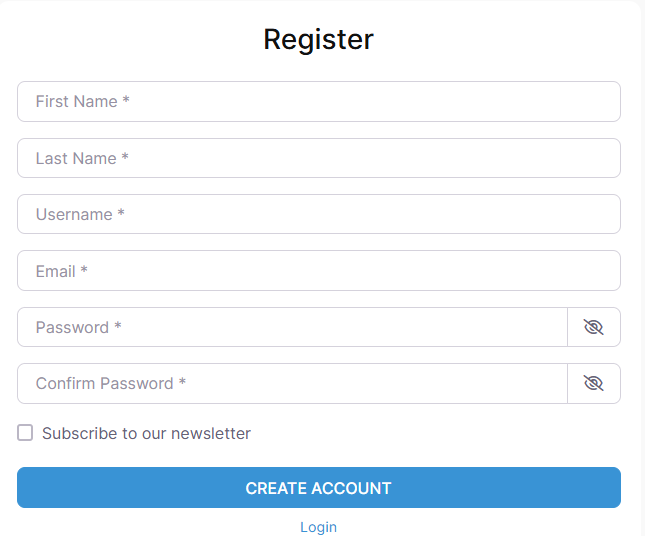
In addition to that, a new field ‘Subscribe to newsletter – Aweber’ is also available in UsersWP > Form Builder > Account which can be added to the Registration Form that allows users to signup to your mailing list whilst they are creating a new account.

Add this field to register form from UsersWP > Form Builder > Register and you will see the checkbox on register form to allow users to subscribe from register form.
The output: