The Groups Email Settings panel allows you to control which email notifications are sent to users for different group-related activities. These settings help keep members informed and engaged with group updates.
Configure these options from: UsersWP → Emails → User Emails.
Available Email Notifications
Below are the available group-related email notifications. Each option can be enabled or disabled individually.
- Delete Group Email – Send an email when a group is deleted.
- Join Group Email – Send an email when a user joins a group.
- Leave Group Email – Send an email when a user leaves a group.
- Invite Member Email – Send an email when a user is invited to join a group.
- New Post in Group Email – Send an email when a new post is added to a group.
- Add New Comment in Group Email – Send an email when a new comment is added to a group post.
- Approve Post in Group Email – Send an email when a group post is approved.
- Reject Post in Group Email – Send an email when a group post is rejected.
- Reply Comment in Group Email – Send an email when a reply is added to a group comment.
- Delete Member in Group Email – Send an email when a member is removed from a group.
- Ban/Unban Member in Group Email – Send an email when a member is banned or unbanned.
- Make/Remove Admin in Group Email – Send an email when a member is promoted to or removed from admin.
- Make/Remove Moderator in Group Email – Send an email when a member is promoted to or removed from moderator.
- Member Request in Group Email – Send an email when a user requests to join a group.
- Accept Member in Group Email – Send an email when a join request is approved.
- Decline Member in Group Email – Send an email when a join request is declined.
- Make Group Owner Email – Send an email when group ownership is transferred.
- Activity Reported Email – Send an email when a group activity is reported.
Settings Panel Preview
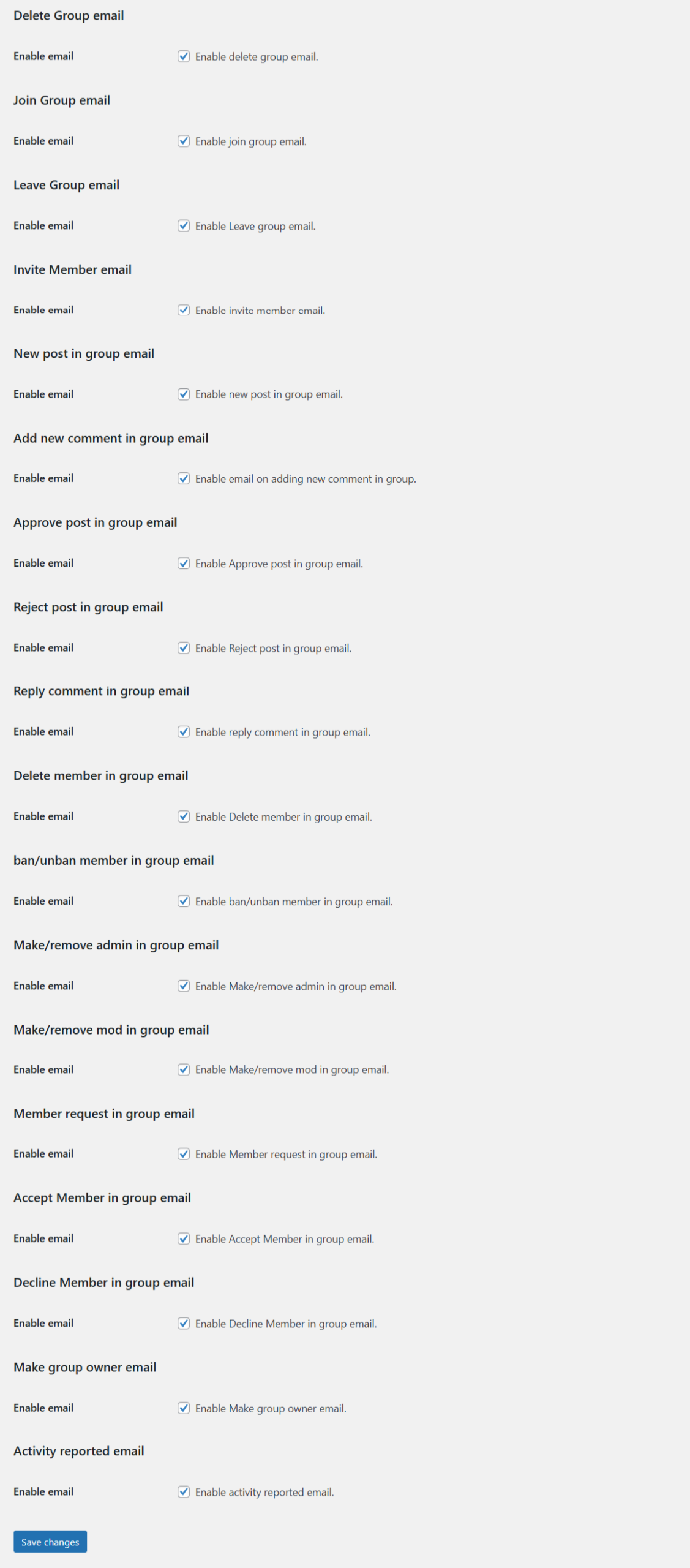
Each notification includes an Enable Email option that allows you to turn the email on or off based on your site’s requirements.
Advanced Email Templates
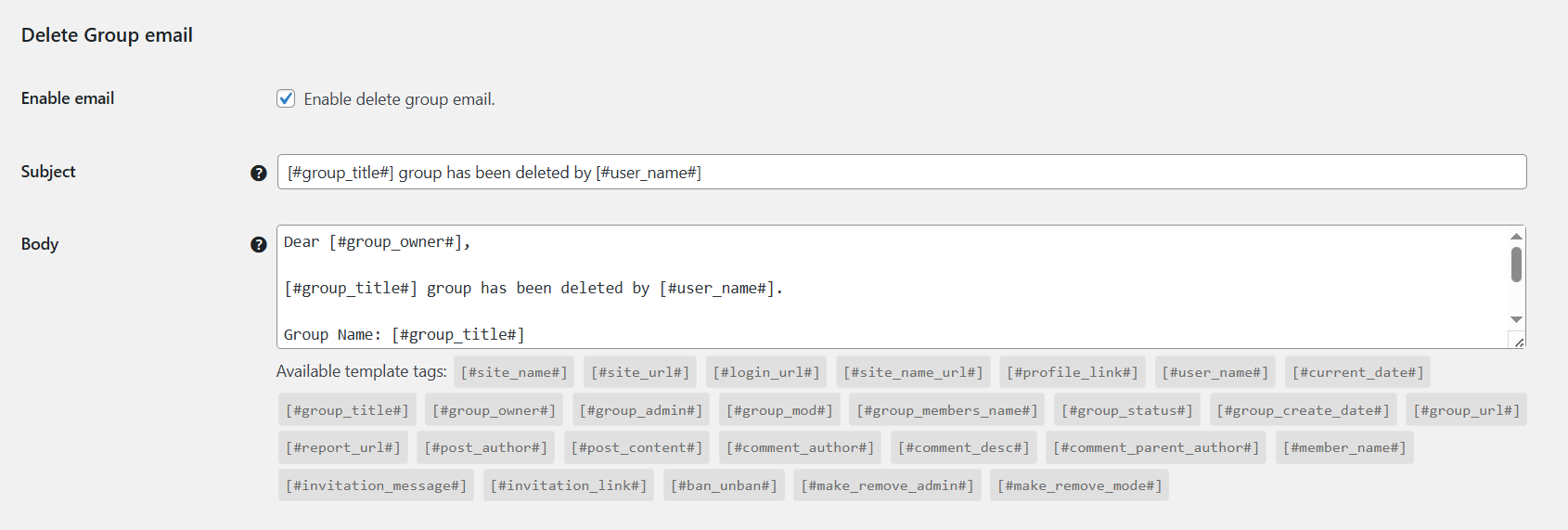
Use the Advanced section to edit email subjects, content, and placeholders for each notification.
Saving Email Settings
After configuring the email notification options and templates, click the Save Changes button to apply your settings.
Best Practices
- Enable only important notifications to avoid overwhelming users.
- Keep critical actions such as approvals and bans enabled.
- Test email delivery using a reliable SMTP plugin.
- Use placeholders to personalize emails.
- Customize templates to match your site branding.
Properly configuring group email notifications helps improve communication, transparency, and user engagement within your community.