How to Create a Paid Membership Website [aka a Paywall]
The vast majority of membership websites are simple.
In one form or another, they are paywalls.
Some or all of the content is protected, accessible only after registration and payment.
Building one with WordPress is straightforward.
You need a good membership plugin, a payments engine, and a couple of hours.
This tutorial is the follow-up to our guide on the best WordPress membership plugin.
If you are new to membership plugins, our overview of what a membership plugin is covers the basics.
Here you will learn how to build a working paywall that protects the content of premium pages, with recurring payments, in one sitting.
The tutorial walks through the most common paywall pattern (gated premium pages on a course site).
An Alternative Configurations section at the end covers four other patterns the same setup supports, including the directory paywall used by many UsersWP customers.
Let’s dive in.
1. Install WordPress
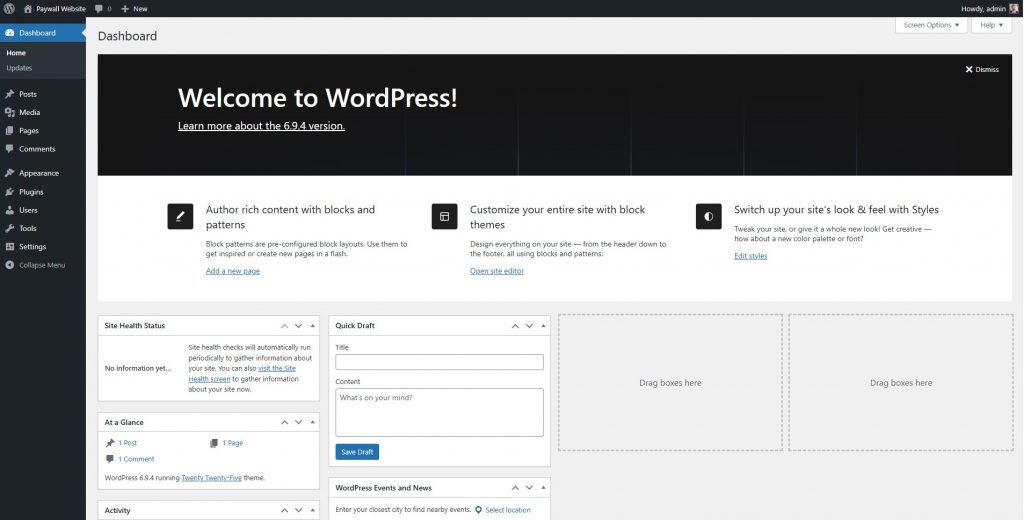
First, we need WordPress.
Many hosting providers offer plans with WordPress pre-installed.
I’ll assume you have a working WordPress install ready.
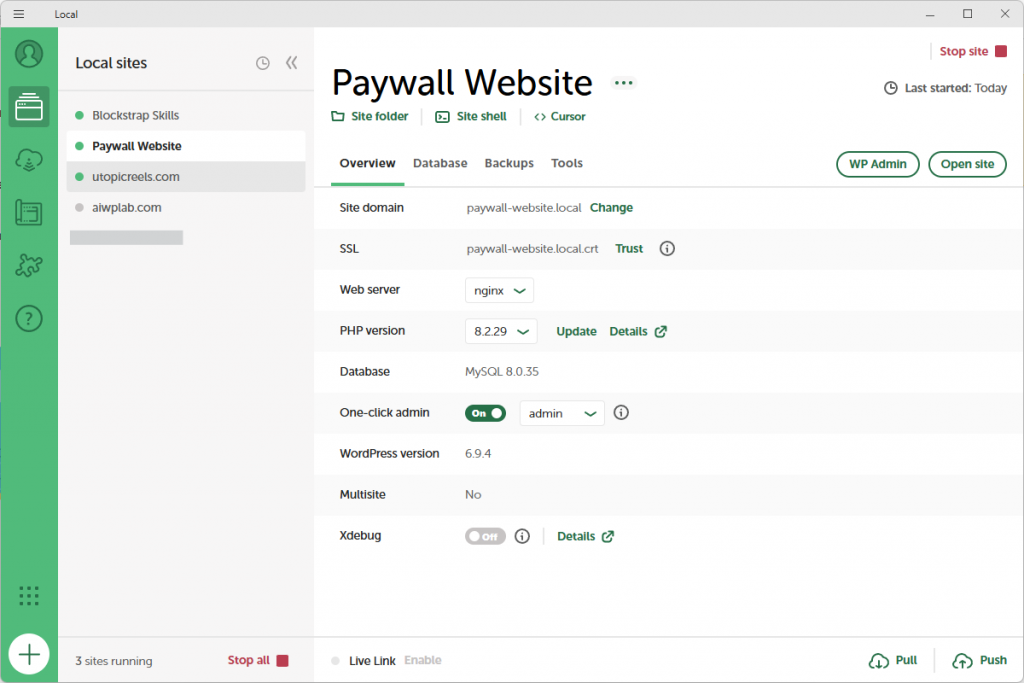
For this tutorial I’m using Local, a free desktop tool that runs WordPress sites on your machine without touching live hosting.
2. Install the Theme
From the WordPress Dashboard, go to Appearance > Themes.
Click the Add Theme button.
In the Search Themes field, type School.
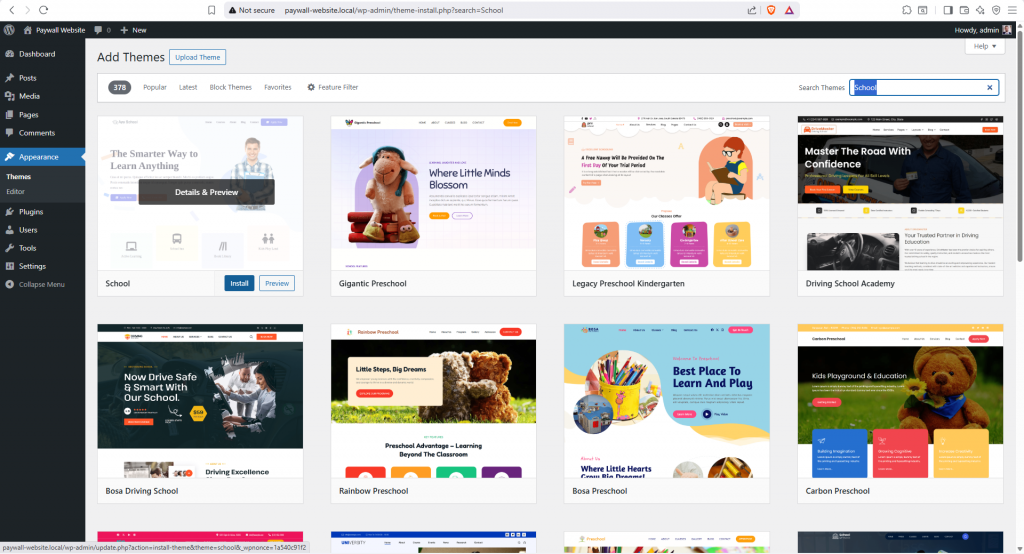
This is our free School Child Theme for Blockstrap.
For this tutorial we’ll build a paywall for an online course site that sells access to video courses.
Two premium pages of video content sit behind the paywall.
Members pay a recurring subscription to access them.
The example is generic enough to map onto your actual use case, whatever the content type.
Install the School theme and activate it.

This installs the parent theme, Blockstrap, and prompts you to install the Blockstrap Page Builder plugin.
Install the page builder too.
The Blockstrap theme, its child themes, and the page builder plugin are built to work together.
They are all free, and they guarantee a fast-loading site that looks polished out of the box.
3. Install the Plugins
We need four plugins for this setup.
The free UsersWP plugin.
The free GetPaid plugin.
The free GetPaid Stripe Payments plugin (a free add-on for GetPaid).
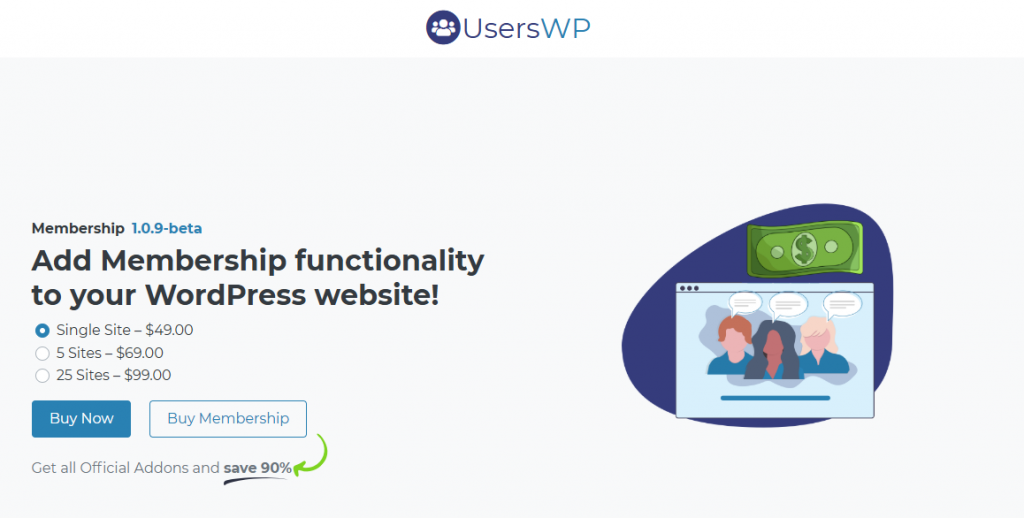
The UsersWP Membership add-on, which is the only paid plugin in this tutorial at $49/year for a single site.
Here’s what each one does.
UsersWP manages user registration, login, account pages, profiles, and the user directory.
GetPaid handles subscriptions, recurring payments, taxes, and invoicing.
It is fully EU VAT compliant and supports all common sales tax models.
GetPaid Stripe Payments connects GetPaid to Stripe, the most widely used payment gateway online.
GetPaid ships with PayPal and several other gateways out of the box, so add the Stripe gateway only if you want Stripe specifically.
The UsersWP Membership add-on handles custom user roles, membership levels, and content restriction.
You may notice we use four plugins for what some platforms bundle into one.
After more than 15 years building WordPress products, the choice was deliberate.
Membership is hard.
Payments are harder.
Combining them in one bloated codebase is how plugins become slow, brittle, and impossible to maintain.
UsersWP handles membership, GetPaid handles payments, each plugin does one job well.
The trade-off is four plugin installs instead of one.
The benefit is a setup that stays fast as you scale, with deeper context in our breakdown of membership plugins vs subscription plugins.
For a deeper look at the features that actually matter when picking a plugin in this category, see our guide to essential features of a membership plugin.
After buying and downloading the Membership add-on from your account page on your account downloads page, go to:
Appearance > Plugins.
Click the Add Plugins button. In the Search Plugins field, type UsersWP.
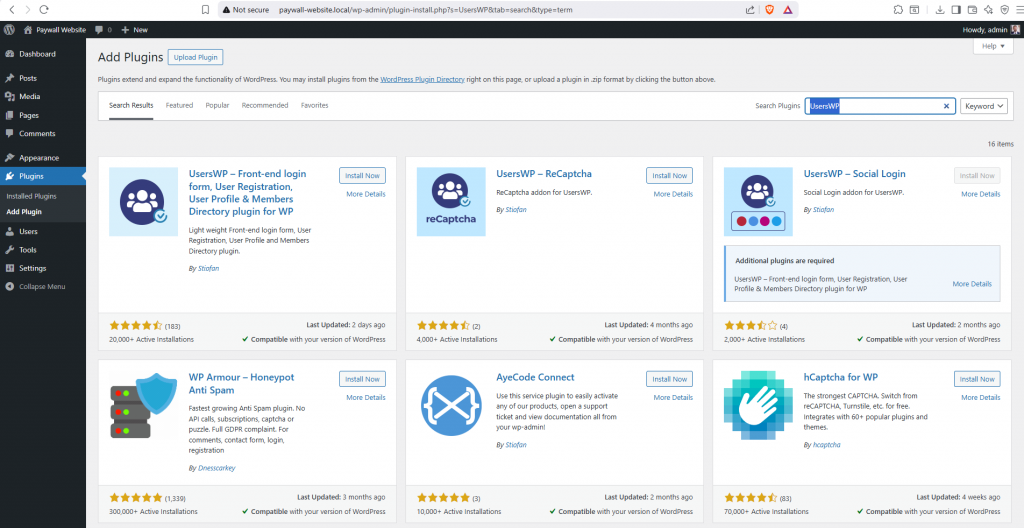
Install and activate the UsersWP plugin.
After activation, the plugin will launch the setup wizard. Click on the “not right now” option, as we will go through this after installing the other plugins.
Go back to the Appearance > Plugins page.
Click the Add Plugins button again. In the Search Plugins field, type GetPaid.
Install and activate the GetPaid plugin.
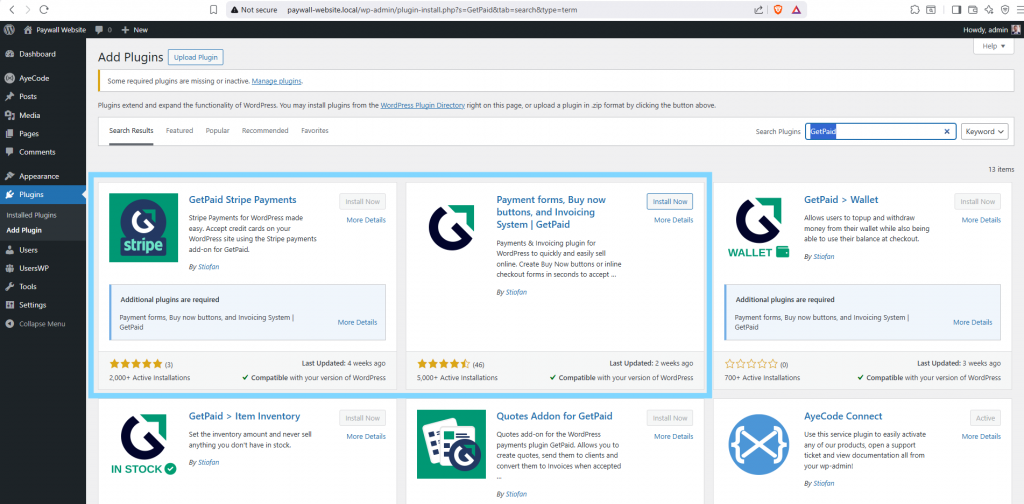
After activation, the plugin will launch the setup wizard. Click on the “not right now” option, as we will go through this after installing the other plugins.
Go back to the Appearance > Plugins page.
Click the Add Plugins button again. In the Search Plugins field, type GetPaid Stripe.
Install and activate the GetPaid Stripe Payments plugin.
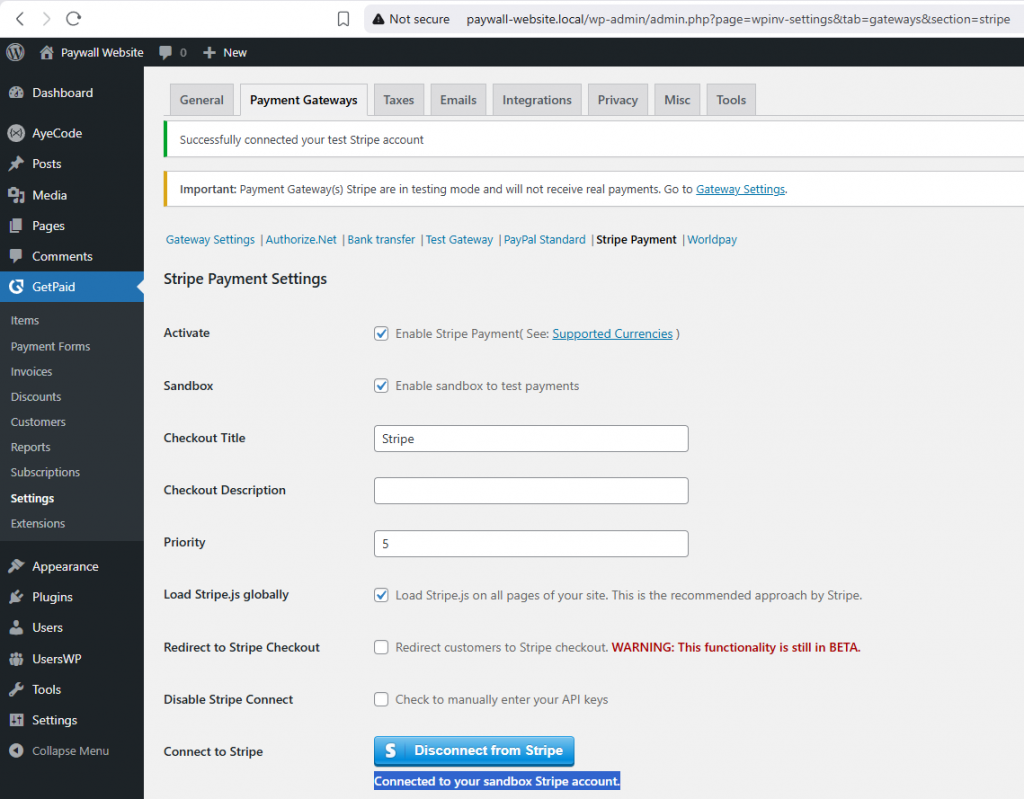
After activation, you will be asked to connect to your sandbox Stripe account.
Proceed with that.
Now it’s finally time to install the Membership plugin
Go back to the Appearance > Plugins page.
Click the Add Plugins button again. Click the Upload Plugin button next.
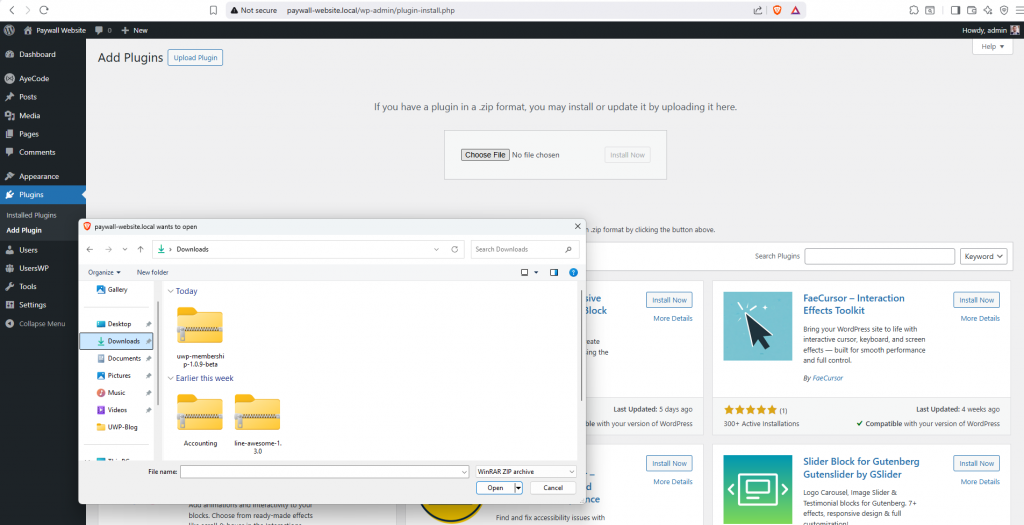
Click the Choose File button and select the zip file of the “uwp-membership” plugin. Click the Install Now button and finally activate it.
4. Setting up the Paywall
We are done installing the theme and the plugins. Now we need to set up the Paywall.
To recap, the project requirements were:
- A Sales page. (A Landing Page)
- Membership Levels
- An Account creation with Membership selection
- A Checkout flow (preferably with Stripe)
- Two pages behind the paywall,
4.1 The Sales page.
I built the landing page with Blockstrap’s block library.
You can build yours from scratch, use one of the Blockstrap templates, or hand the design off to a designer.
The landing page itself is not the focus of this tutorial.
It comes with placeholders in both text and images, which you replace with your real content.
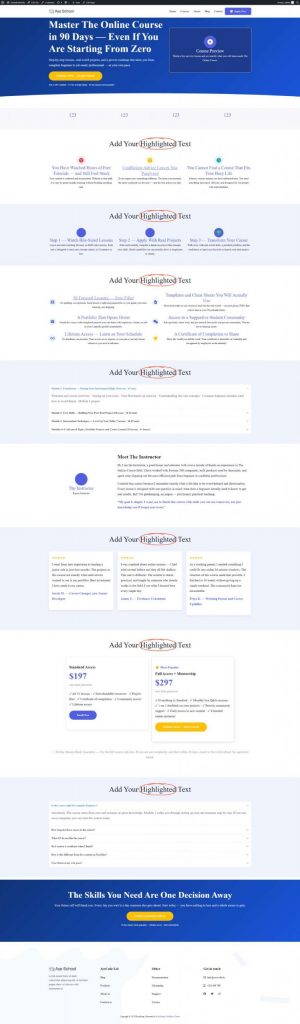
For this tutorial we leave the placeholders in place, since the landing page itself isn’t the focus.
The next step is creating the membership levels.
4.2 Create the Membership Levels
The Sales Landing page shows two packages with different prices and features.
Standard Access at $197/year, and Full Access + Mentorship at 297/year.
This means we need to create two membership types.
To do this, we go to UsersWP > Membership Types and click the Add Membership Type button.
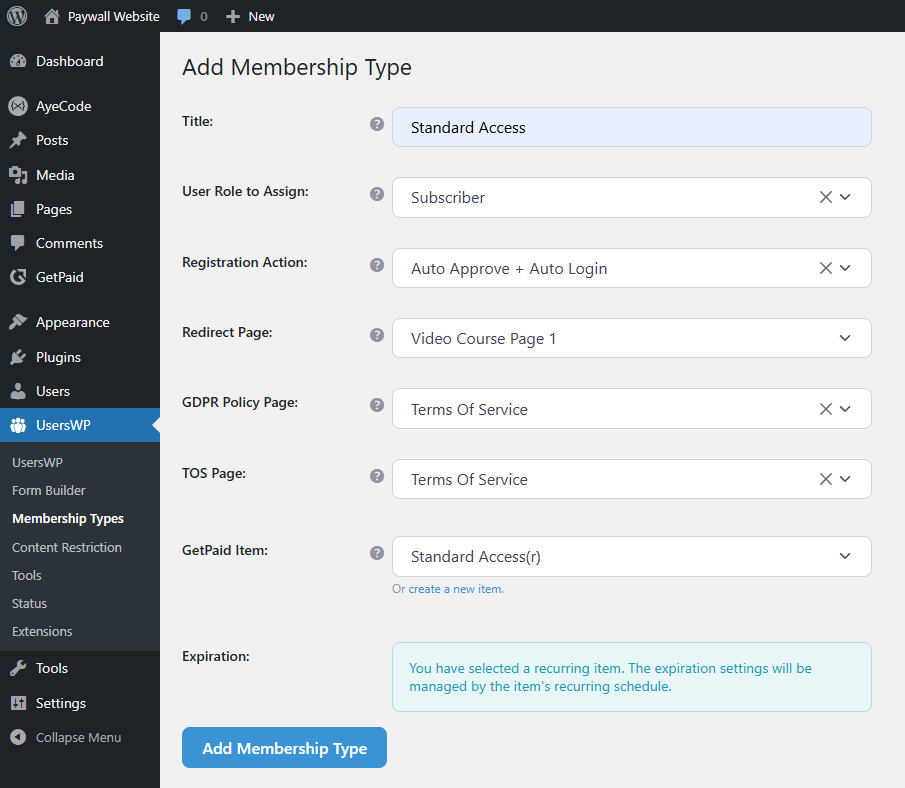
- Title
- User role
- Post-registration action
- Redirect page after user registration (avail only if auto login is selected)
- The policies pages
- Create the new Items (GetPaid products) to associate with this Membership Type.
To create the new Items, click the “create new item” link below the last select field, labelled GetPaid item:
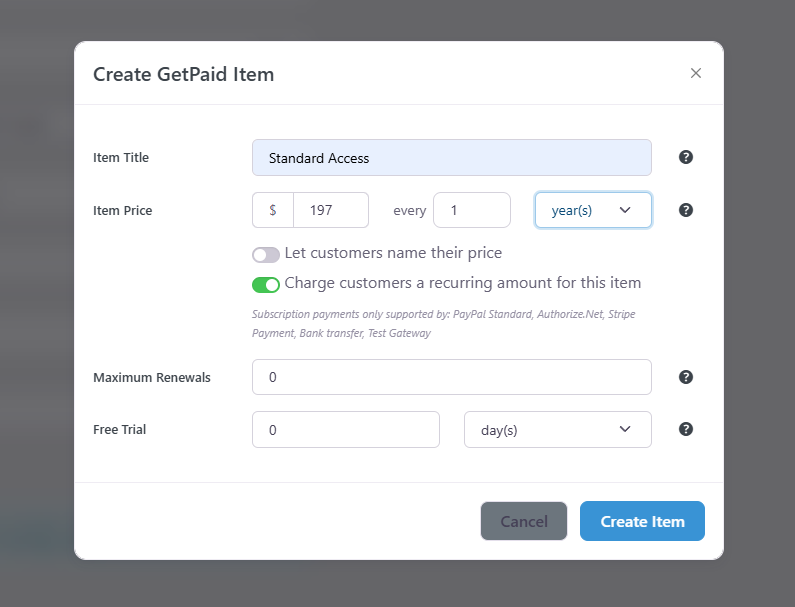
Fill in the Create GetPaid Item form that appears in a pop-up window, including a title and pricing options. In this example, $197 recurring every year, and finally click the “Create Item” button.
Repeat to create the second Membership Type.
After we create both Membership types, we end up with this:
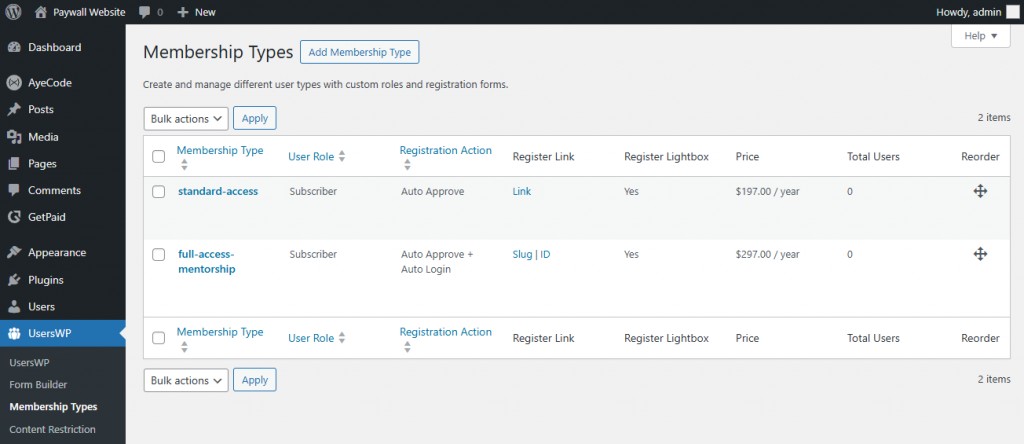
This also created 2 registration forms, each of which, if needed, can be set up with different custom fields.
4.3 Account creation page
Once you activate UsersWP, the plugin automatically creates the following pages:
- Login
- Register
- Account
- Profile
- Password recovery
- Change password
- Reset password
- Users directory
- User profile item page
The account creation page is the “Register” page. So this is already available with default custom fields.
If you need extra custom fields, you can add as many as you want from UsersWP > Form Builder. By selecting the User Type, you’ll see two forms, one for each membership type.
Custom Fields you create can be made available on the Account page, which users can edit once they are registered and logged in, and/or on the registration page. Where users create their accounts.
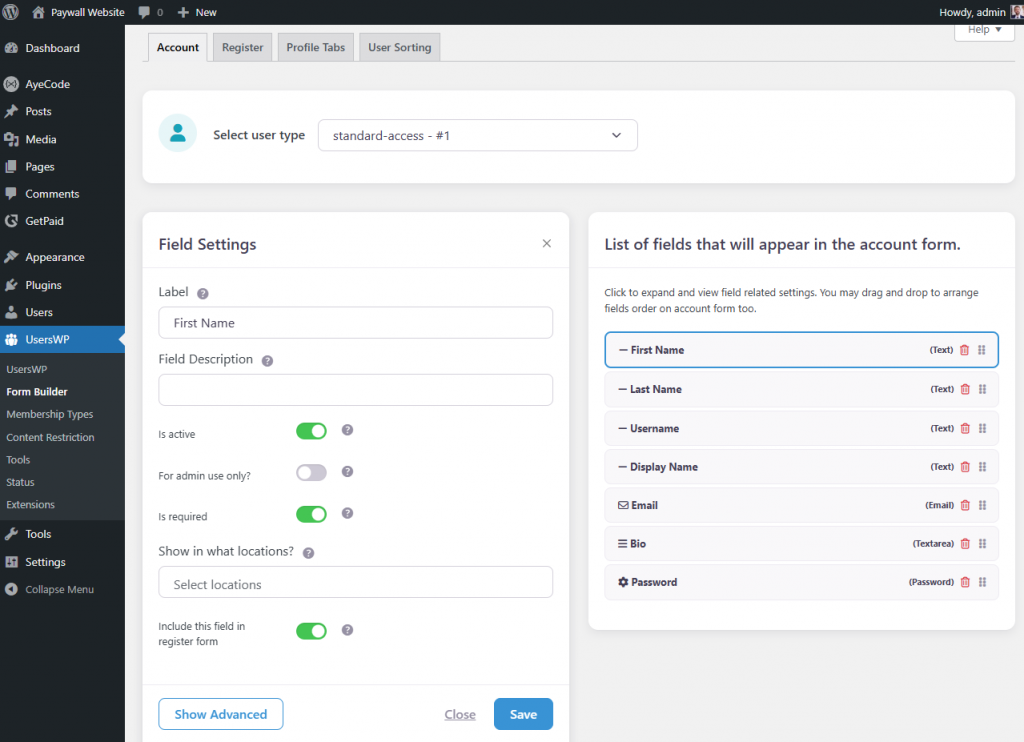
The default fields for this tutorial are more than enough, so after enabling registration in WordPress General Settings, we can start selling memberships.
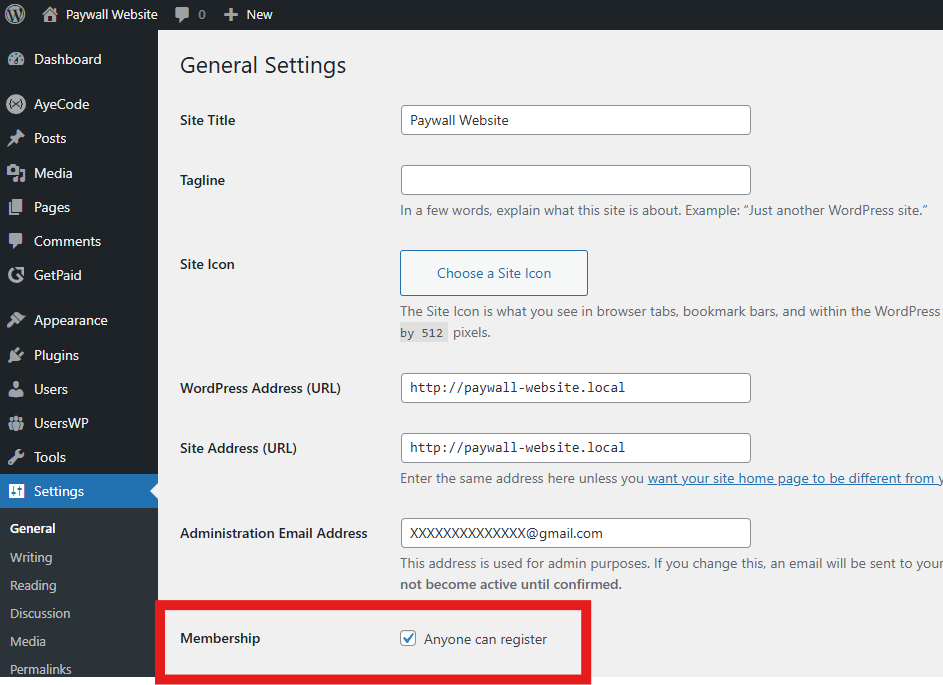
The last thing we need to do is add links to the Call-to-action buttons in the pricing section of the landing page.
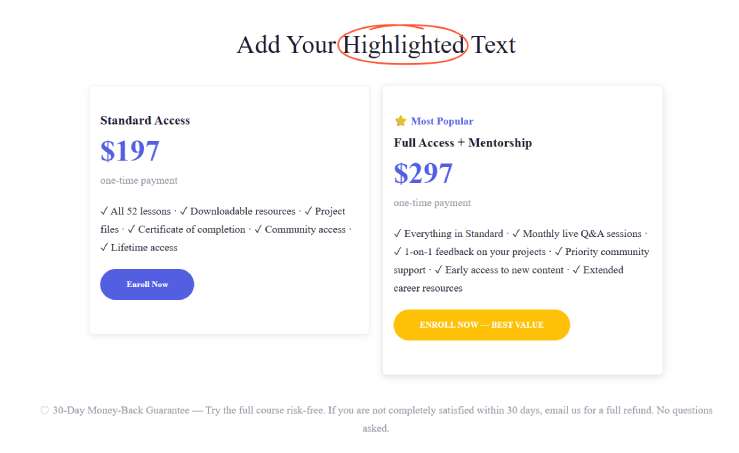
To edit this section, I will go to:
Appearance > Editor > Patterns > All Template Parts and edit the course-s9-pricing section.
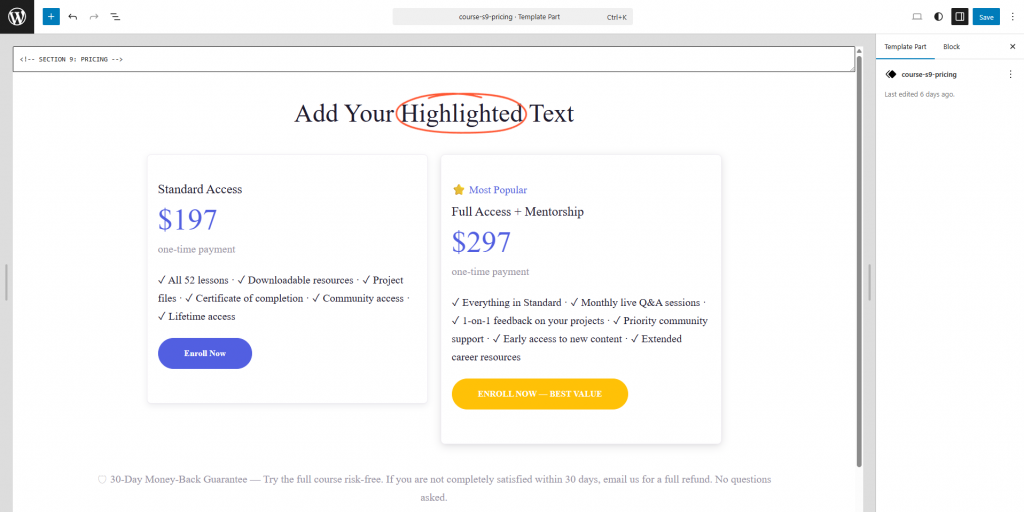
Click on the first button, “Enroll Now,” to open the Block settings.
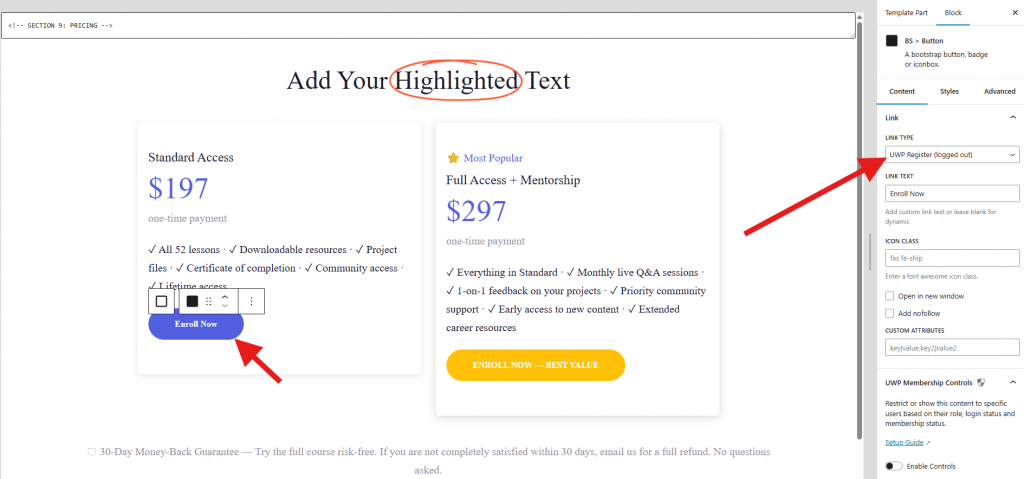
For Link Type, the first setting of the BS > Button block, select UWP Register and save.
If you now visit the Online Course page (the Landing page) in a private tab where you are not logged in, and click the Enroll Now Button for the Standard Access Membership Level, a pop-up like this will appear.
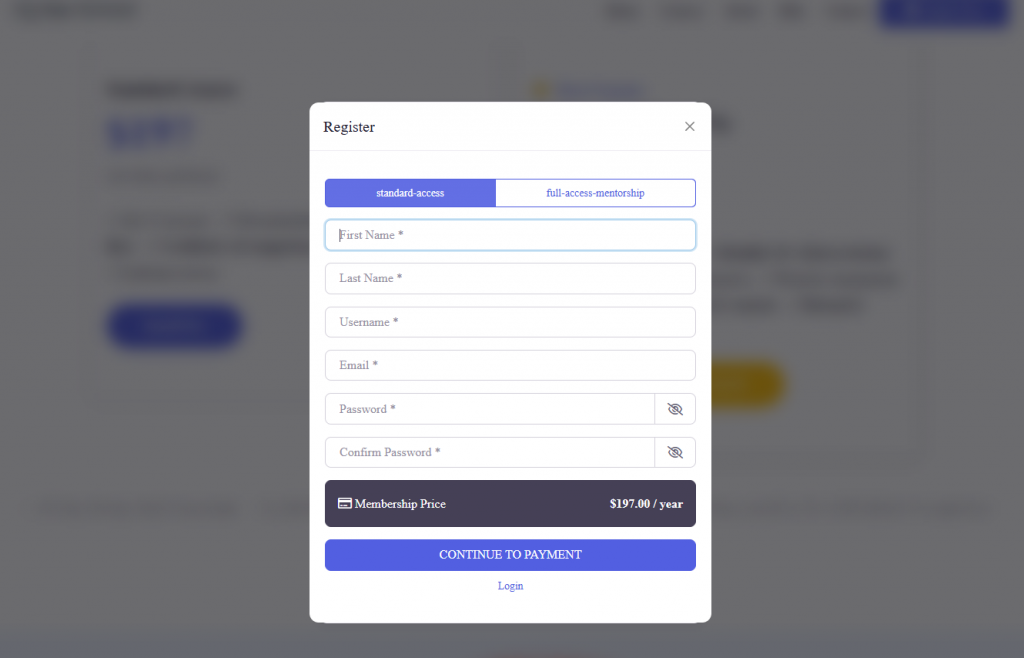
After filling in the form and clicking Continue to Payment, you are sent to the checkout page.
4.4 The Check out flow
The checkout page is part of the GetPaid plugin. So there is little to nothing to do here.
You can use the default fields or modify them according to your needs, by modifying the default checkout form or creating one ad hoc.
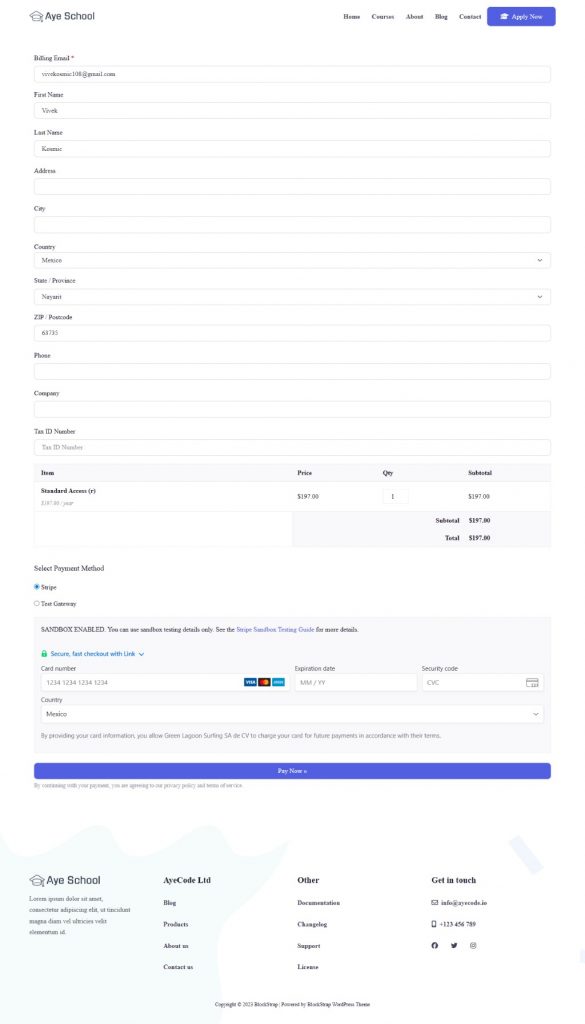
Once the user fills the form and submits their credit card information to process the payment, the subscription will start and will automatically renew every 12 months.
Now we only need the content pages that need to be protected behind the Paywall.
4.5 Two pages behind the paywall
This is very simple. We create 2 normal pages. I titled them:
- Video Course Page 1
- Video Course Page 2
I added 9 videos to each page using Blockstrap’s card blocks, arranged in two grids of three cards.
The example uses public video from an MIT Quantum Physics course, but you would obviously use your own content.

now we need to protect them.
To do this we go to UsersWP > Content Restriction and click on Add New Restriction.
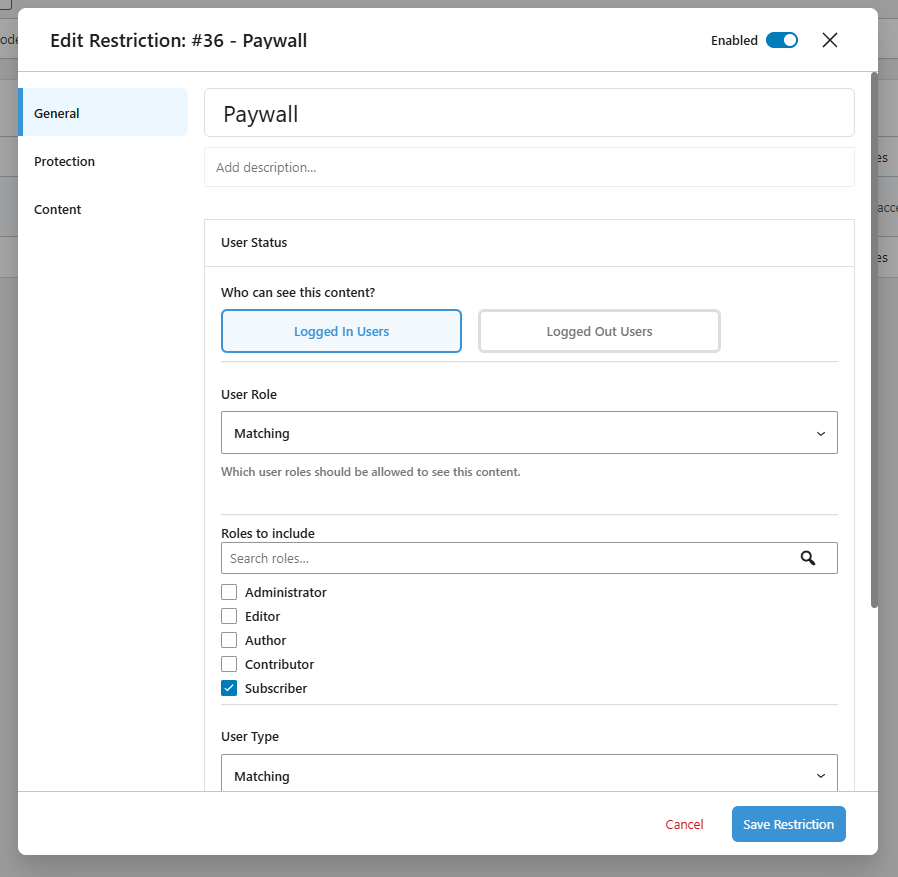
I called the restriction “Paywall”.
From the General tab, on the User Status section, where it asks, “Who can see this content?“ I selected Logged in Users.
User Role select Matching = Subscriber.
And User Type select Matching = standard-access & full-access-mentorship, which are our 2 membership levels.
Next, we need to move to the Protection tab.
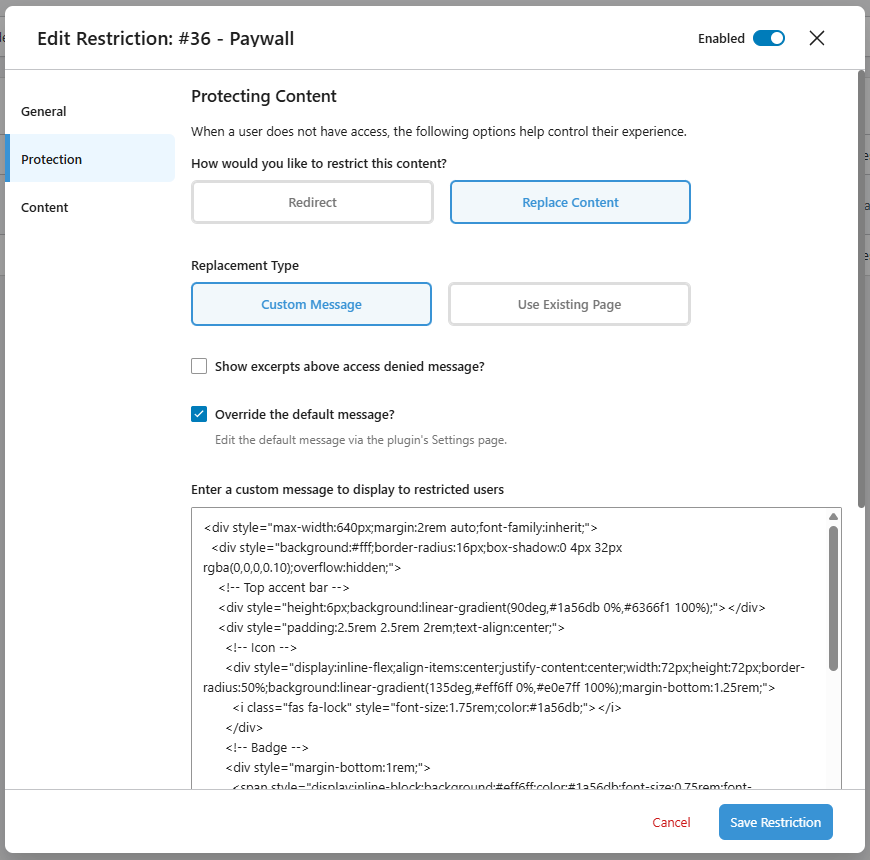
Where it asks, How would you like to restrict this content? Select Replace Content.
In the Replacement Type section, select Custom Message.
Tick the Override the default message? option, otherwise a non-logged-in user visiting those pages will see a very short default message saying this content is protected.
In the Enter a custom message to display to restricted users text area, add the message you want non-members to see.
You can use plain text or HTML.
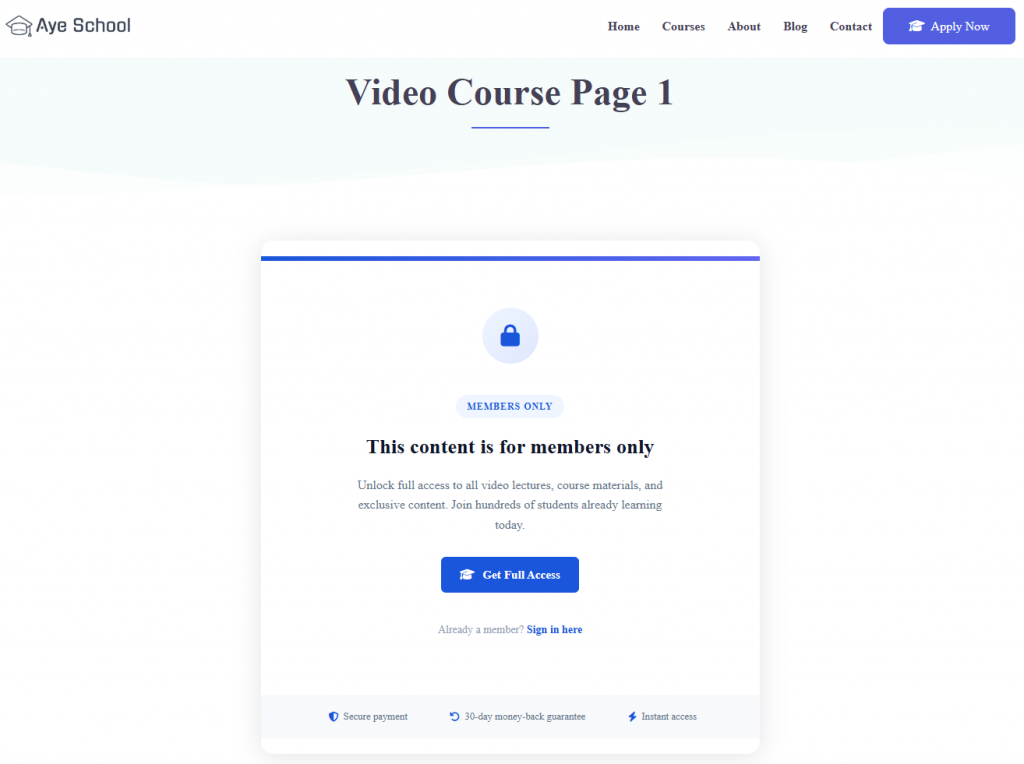
For this tutorial I used a Members Only message styled with Bootstrap 5 HTML.
Next, the “Define how restricted items appear in archive pages” is not relevant to this tutorial because pages don’t appear in archive pages, that’s for Blog Posts.
That said, I leave this option selected: Filter the restricted items’ content.
Which is the same option I select for Handling matches everywhere else, the last option on this tab.
Lastly, we move to the Content tab.
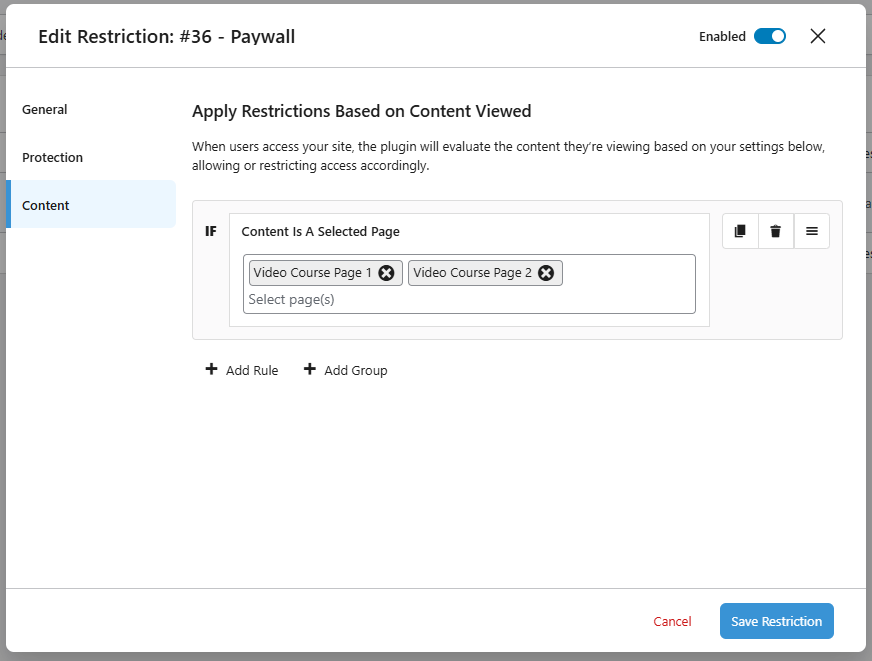
This is where we tell the plugin which content to protect.
For this Paywall, I selected IF: Content is a Selected Page. This made a multiselect field appear, allowing me to select any of the available pages.
I selected our two pages, Video Course Page 1 and Video Course Page 2, and clicked on the Save Restriction button. These settings are unique to this Paywall, but for different types of membership websites, you most likely need to tweak them.
4.6 Paywall set up completed
That is it. If a non-logged-in user visits one of the 2 protected pages, they will see the “Members Only” message.
If they register, pay for the membership and visit the 2 protected pages after logging in they will see the video course.
5. Alternative Configurations
The setup above is the most common paywall pattern.
The same UsersWP plus GetPaid stack supports several variants, each useful for a different business model.
Article Paywall (Teaser + Full Content)
Common on newspaper and magazine sites.
The title, featured image, and first few paragraphs of an article stay public so Google, social media, and casual visitors can see what the article is about.
The rest of the article gets locked behind a paid membership.
This works well when the intro acts as a preview that earns the click to subscribe.
Members-Only Sections Within a Page
Instead of locking entire pages or articles, you lock specific sections, downloads, templates, videos, or bonus material.
The main article stays free, and the premium extras are gated.
This pattern often outperforms full content paywalls because visitors get real value before deciding to upgrade.
Tiered Access
Different membership levels see different content.
Free members see basic articles, paid members see premium content, premium members get extra resources or early access.
For deeper context on when tiered access earns its complexity, see our guide to types of membership business models.
Directory Paywall
One of the most common UsersWP deployment patterns in real customer sites.
On a directory site built with GeoDirectory, the listing title, description, photos, and category stay public so the directory ranks in Google.
The contact information, the phone number, email, and website URL, stays hidden behind a paid membership.
The configuration is similar to the tutorial above, with one key difference.
Instead of restricting whole pages in step 4.5, you use field-level restriction on the listing’s contact fields.
This turns a free directory into a recurring lead-generation business without breaking the listing’s SEO.
Private Resource Library
Many membership sites deliver value as a growing collection of resources rather than a single protected page.
If your members want a searchable, filterable library of PDFs, templates, guides, reports, or training material, you can combine UsersWP with a document management plugin like Document Library Pro.
UsersWP handles who gets access.
Document Library Pro handles the library itself.
This combination works well for course bundles, training programs, professional associations, and any membership where the value is a growing library of materials.
To Wrap It All Up
A paywall does not have to be complicated.
Start with free registration, lock only the most valuable parts of your content, and add paid access only when there is enough value to justify it.
UsersWP gives you the membership layer.
GetPaid handles the payment side.
Together they let you build anything from a simple members-only article to a full paid content platform, without turning your site into something you cannot manage at scale.
The UsersWP Membership Plugin starts at $49 per year for a single site and includes everything most paywall sites need.
Do not overcomplicate things.
Start your membership site with the lightest setup that solves your actual problem, and add complexity only when the business demands it.

Pat
Can we do this:
Create a directory with free listings and paid listings but paid listings get access to the protected content?
Paolo
Hi Pat,
Thanks for your comment.
At the moment, this can only be done manually. Once someone buys a premium listing, you would need to manually activate the membership for that user. It is very easy to do, but obviously, this does not scale well, and you should let users know that the membership is not activated immediately after the listing is paid.
That said, I will most likely need something similar for one of my own projects too. I’ll investigate how hard it would be to create a bridge between the GeoDirectory Pricing Manager and the Membership plugin to automate this.
I’ll keep you posted!